'%3e%3cpath%20d='M8.85591%2016.2988H5.69922V26.321H8.85591V16.2988Z'%20fill='%23CD2529'/%3e%3cpath%20d='M2.28671%2014.7583H5.69928H8.85597H12.247C13.0146%2014.7583%2013.7041%2014.2923%2013.9923%2013.584L14.5337%2012.2534H0L0.541378%2013.584C0.829574%2014.295%201.52178%2014.7583%202.28671%2014.7583Z'%20fill='%23CD2529'/%3e%3cpath%20d='M40.4819%2020.7617L34.6318%2012.2505H36.8135C37.433%2012.2505%2038.0148%2012.5548%2038.3676%2013.0666L42.3269%2018.8197L41.8933%2018.7174L45.7826%2013.0666C46.1354%2012.5548%2046.7145%2012.2505%2047.3367%2012.2505H49.5184L43.6656%2020.7617V26.3209H40.49V20.7617H40.4819Z'%20fill='%23CD2529'/%3e%3cpath%20d='M111.241%2012.2505V24.4355C111.241%2025.4779%20110.398%2026.3209%20109.356%2026.3209H108.157V14.1359C108.157%2013.0935%20109%2012.2505%20110.043%2012.2505H111.241Z'%20fill='%23CD2529'/%3e%3cpath%20d='M136.777%2025.6828C135.641%2025.0903%20134.768%2024.2472%20134.154%2023.151C133.54%2022.0548%20133.235%2020.7673%20133.235%2019.2886C133.235%2017.8099%20133.542%2016.5198%20134.154%2015.4236C134.768%2014.3274%20135.641%2013.4843%20136.777%2012.8918C137.914%2012.2992%20139.247%2012.0029%20140.78%2012.0029C142.312%2012.0029%20143.645%2012.2992%20144.782%2012.8918C145.919%2013.4843%20146.791%2014.3274%20147.405%2015.4236C148.02%2016.5198%20148.324%2017.8073%20148.324%2019.2886C148.324%2020.77%20148.017%2022.0413%20147.405%2023.1429C146.791%2024.2445%20145.919%2025.0903%20144.782%2025.6828C143.645%2026.2754%20142.312%2026.5716%20140.78%2026.5716C139.247%2026.5716%20137.914%2026.2754%20136.777%2025.6828ZM143.185%2023.4634C143.877%2023.0729%20144.405%2022.518%20144.774%2021.8016C145.143%2021.0851%20145.326%2020.2475%20145.326%2019.2886C145.326%2018.3298%20145.143%2017.4733%20144.774%2016.7568C144.408%2016.0404%20143.88%2015.4855%20143.196%2015.095C142.511%2014.7044%20141.706%2014.5105%20140.78%2014.5105C139.853%2014.5105%20139.048%2014.7044%20138.364%2015.095C137.679%2015.4855%20137.154%2016.0404%20136.785%2016.7568C136.416%2017.4733%20136.233%2018.3163%20136.233%2019.2886C136.233%2020.261%20136.416%2021.0851%20136.785%2021.8016C137.152%2022.518%20137.682%2023.0729%20138.374%2023.4634C139.067%2023.854%20139.867%2024.0479%20140.78%2024.0479C141.693%2024.0479%20142.493%2023.854%20143.185%2023.4634Z'%20fill='%23CD2529'/%3e%3cpath%20d='M78.4727%2012.2505H75.2326L69.1724%2026.3209H71.249C72.0139%2026.3209%2072.7061%2025.8577%2072.9943%2025.1493L73.937%2022.841L74.9605%2020.3173L76.8405%2015.6684L78.7205%2020.3173L79.744%2022.841L80.6867%2025.1493C80.9776%2025.8577%2081.6671%2026.3209%2082.4321%2026.3209H84.5087L78.4727%2012.2505Z'%20fill='%23CD2529'/%3e%3c/g%3e%3c/svg%3e)
Viator operations
Viator email booking transfers are supported only in the T-Agent desktop app, not the web app. Use the desktop app for the steps below.
Currently, only Alibaba Mail is supported.
When a Viator booking notification arrives in your mailbox, the booking still needs to be entered in T-CMS. Ask T-Agent to read the booking emails and transfer them using your product mappings, either once or every hour as new bookings arrive.
Ask the Agent to guide mailbox setup
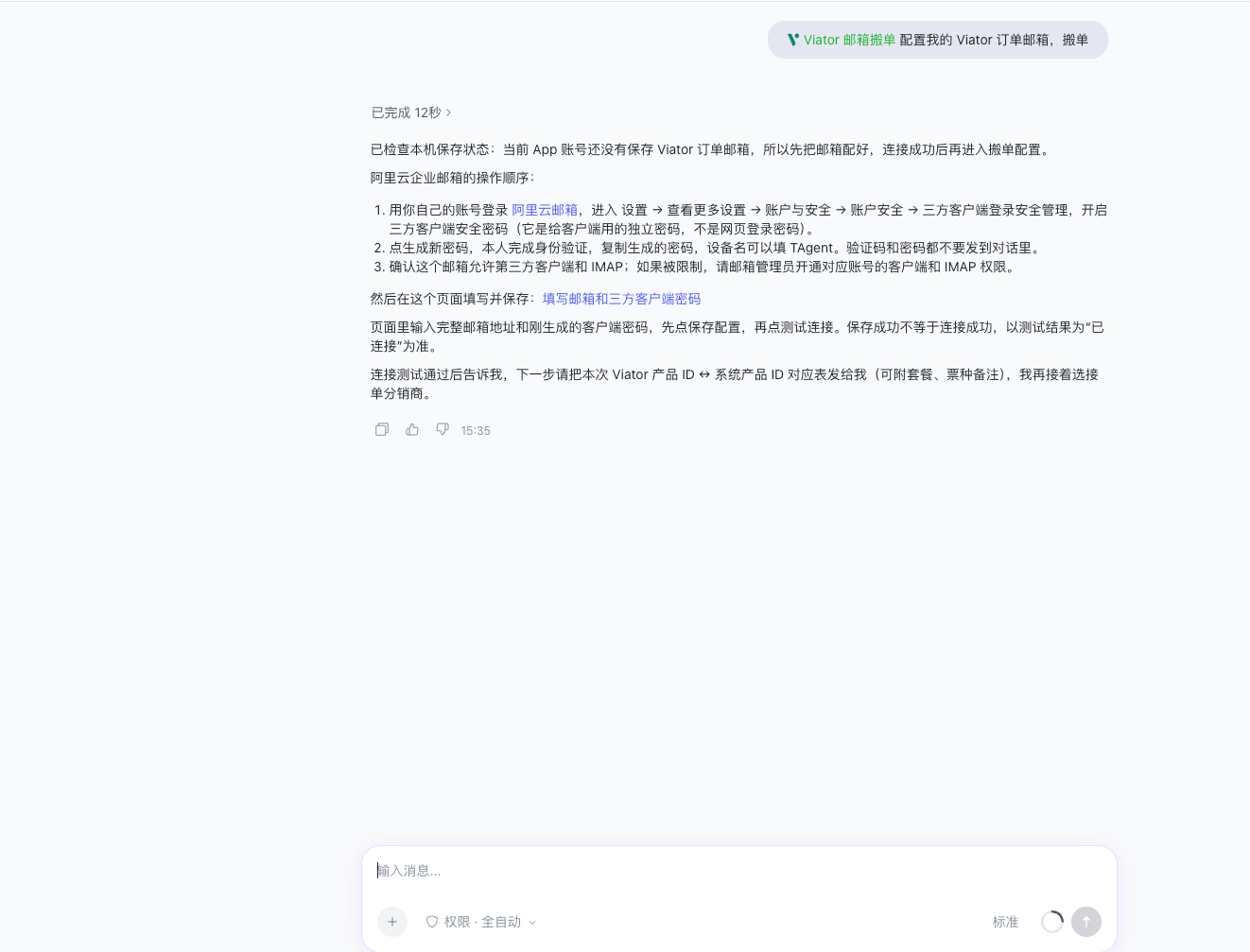
Select the Viator email booking transfer plugin in the message input and tell T-Agent:
Configure my Viator order mailbox and transfer bookings.
T-Agent checks whether a mailbox is already configured and explains the next step. For first-time setup, follow its reply to enable IMAP access and generate a third-party client password.
In Alibaba Mail, open the third-party client login security settings. Complete identity verification yourself and generate the client password. This is a separate password for email clients, not your webmail sign-in password. Enter passwords and verification codes on the relevant pages, not in chat.
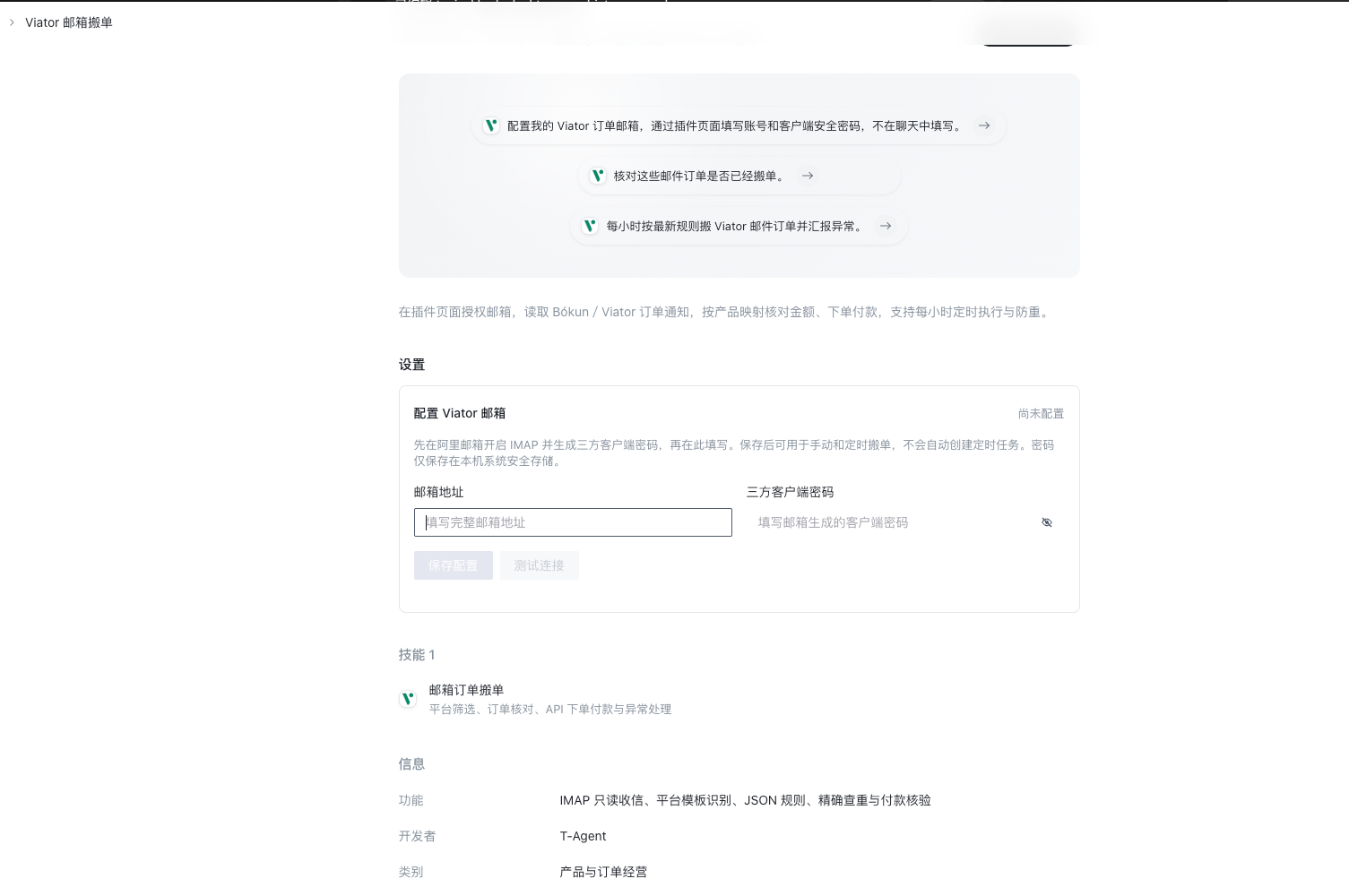
Enter the account and password on the plugin page
Select the Enter mailbox and third-party client password link in the Agent's reply. It opens the Configure Viator mailbox section on the plugin details page.
- Under Email address, enter the full account address that receives Viator booking notifications.
- Under Third-party client password, enter the client password you generated.
- Select Save configuration, then Test connection.
- Once the test shows Connected, return to the conversation, tell T-Agent the mailbox is connected, and continue preparing the transfer.
If the connection fails, follow the page's guidance to check the account address, client password, and IMAP access. An enterprise mailbox may also require the administrator to allow third-party clients. Saving the configuration does not confirm a successful connection; use the test result.
Provide product mappings and transfer this batch
After connecting the mailbox, follow the Agent's guidance to confirm the distributor receiving the bookings and provide Viator product ID to T-CMS system product ID mappings. Upload a mapping table or describe the pairs in chat, including package, ticket type, and other options where applicable.
To handle today's bookings together or transfer selected bookings, tell T-Agent:
Transfer Viator email bookings to T-CMS.
For a single batch, reply that you want only one run. T-Agent checks the emails and product mappings, continues within the scope you confirm, and summarizes completed bookings, previously handled bookings, and those needing attention.
Completion here means transferring Viator email bookings to T-CMS.
Transfer incoming bookings every hour
Recurring transfers follow the same workflow as Klook operations. Reuse your confirmed product mappings and tell T-Agent:
Use the product mappings above and transfer bookings every hour.
After you confirm the scope and frequency, T-Agent creates the corresponding scheduled task to keep handling new Viator email bookings. Configuring the mailbox alone does not create a scheduled task.
Find run history in the corresponding task
- In the T-Agent desktop app, open Automations (scheduled tasks) in the left sidebar and find the relevant Viator transfer task.
- Click the task to open its details.
- Under Run history, click a record to open the execution conversation and review the transfer process and results.
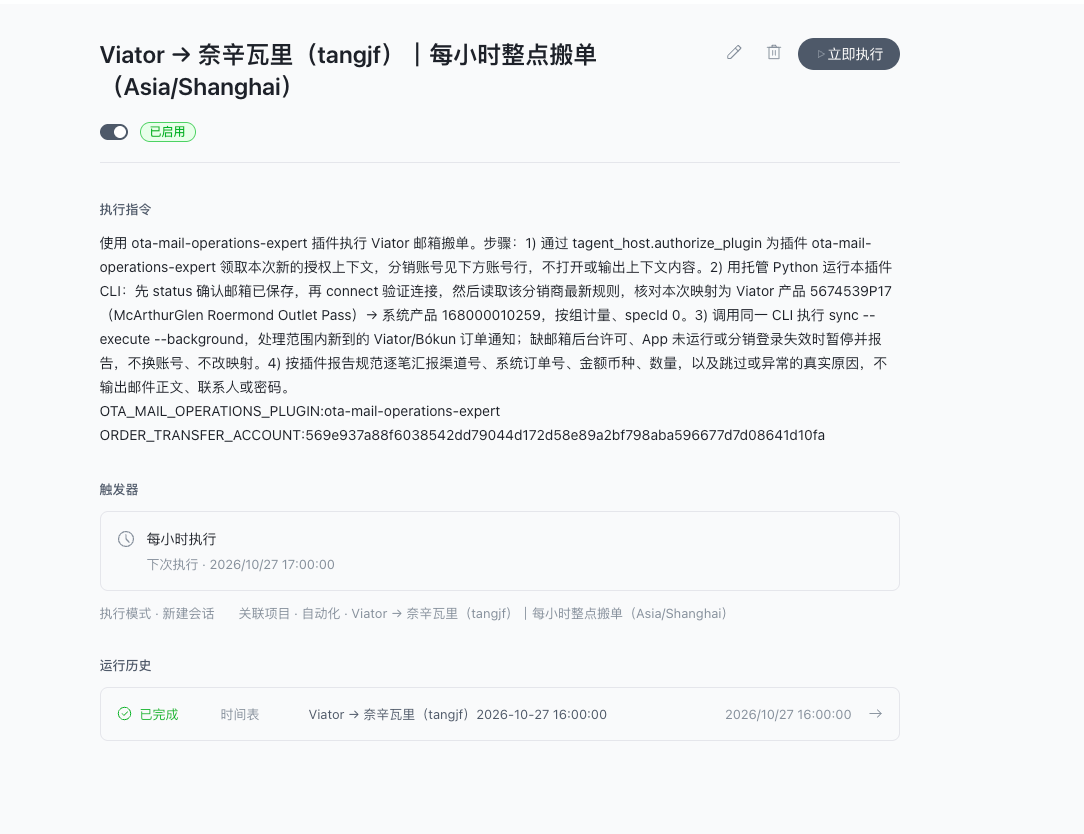
Use the corresponding task to pause transfers, run immediately, or change the schedule. See Scheduled tasks for the general steps.
Review the results and follow up
- Transferred this time: Review the Viator booking reference and corresponding T-CMS order number to continue the work.
- Already transferred and skipped: See which bookings were completed earlier without arranging them again.
- Needs your attention: For example, missing product mappings, incomplete booking details, or a changed booking. Supply the requested information and confirm the next step before continuing.
Tyaio · Updated