'%3e%3cpath%20d='M8.85591%2016.2988H5.69922V26.321H8.85591V16.2988Z'%20fill='%23CD2529'/%3e%3cpath%20d='M2.28671%2014.7583H5.69928H8.85597H12.247C13.0146%2014.7583%2013.7041%2014.2923%2013.9923%2013.584L14.5337%2012.2534H0L0.541378%2013.584C0.829574%2014.295%201.52178%2014.7583%202.28671%2014.7583Z'%20fill='%23CD2529'/%3e%3cpath%20d='M40.4819%2020.7617L34.6318%2012.2505H36.8135C37.433%2012.2505%2038.0148%2012.5548%2038.3676%2013.0666L42.3269%2018.8197L41.8933%2018.7174L45.7826%2013.0666C46.1354%2012.5548%2046.7145%2012.2505%2047.3367%2012.2505H49.5184L43.6656%2020.7617V26.3209H40.49V20.7617H40.4819Z'%20fill='%23CD2529'/%3e%3cpath%20d='M111.241%2012.2505V24.4355C111.241%2025.4779%20110.398%2026.3209%20109.356%2026.3209H108.157V14.1359C108.157%2013.0935%20109%2012.2505%20110.043%2012.2505H111.241Z'%20fill='%23CD2529'/%3e%3cpath%20d='M136.777%2025.6828C135.641%2025.0903%20134.768%2024.2472%20134.154%2023.151C133.54%2022.0548%20133.235%2020.7673%20133.235%2019.2886C133.235%2017.8099%20133.542%2016.5198%20134.154%2015.4236C134.768%2014.3274%20135.641%2013.4843%20136.777%2012.8918C137.914%2012.2992%20139.247%2012.0029%20140.78%2012.0029C142.312%2012.0029%20143.645%2012.2992%20144.782%2012.8918C145.919%2013.4843%20146.791%2014.3274%20147.405%2015.4236C148.02%2016.5198%20148.324%2017.8073%20148.324%2019.2886C148.324%2020.77%20148.017%2022.0413%20147.405%2023.1429C146.791%2024.2445%20145.919%2025.0903%20144.782%2025.6828C143.645%2026.2754%20142.312%2026.5716%20140.78%2026.5716C139.247%2026.5716%20137.914%2026.2754%20136.777%2025.6828ZM143.185%2023.4634C143.877%2023.0729%20144.405%2022.518%20144.774%2021.8016C145.143%2021.0851%20145.326%2020.2475%20145.326%2019.2886C145.326%2018.3298%20145.143%2017.4733%20144.774%2016.7568C144.408%2016.0404%20143.88%2015.4855%20143.196%2015.095C142.511%2014.7044%20141.706%2014.5105%20140.78%2014.5105C139.853%2014.5105%20139.048%2014.7044%20138.364%2015.095C137.679%2015.4855%20137.154%2016.0404%20136.785%2016.7568C136.416%2017.4733%20136.233%2018.3163%20136.233%2019.2886C136.233%2020.261%20136.416%2021.0851%20136.785%2021.8016C137.152%2022.518%20137.682%2023.0729%20138.374%2023.4634C139.067%2023.854%20139.867%2024.0479%20140.78%2024.0479C141.693%2024.0479%20142.493%2023.854%20143.185%2023.4634Z'%20fill='%23CD2529'/%3e%3cpath%20d='M78.4727%2012.2505H75.2326L69.1724%2026.3209H71.249C72.0139%2026.3209%2072.7061%2025.8577%2072.9943%2025.1493L73.937%2022.841L74.9605%2020.3173L76.8405%2015.6684L78.7205%2020.3173L79.744%2022.841L80.6867%2025.1493C80.9776%2025.8577%2081.6671%2026.3209%2082.4321%2026.3209H84.5087L78.4727%2012.2505Z'%20fill='%23CD2529'/%3e%3c/g%3e%3c/svg%3e)
Scheduled tasks
A scheduled task runs an instruction at a selected time or interval. T-Agent can create one from a conversation, or you can select New task from the Scheduled tasks page.
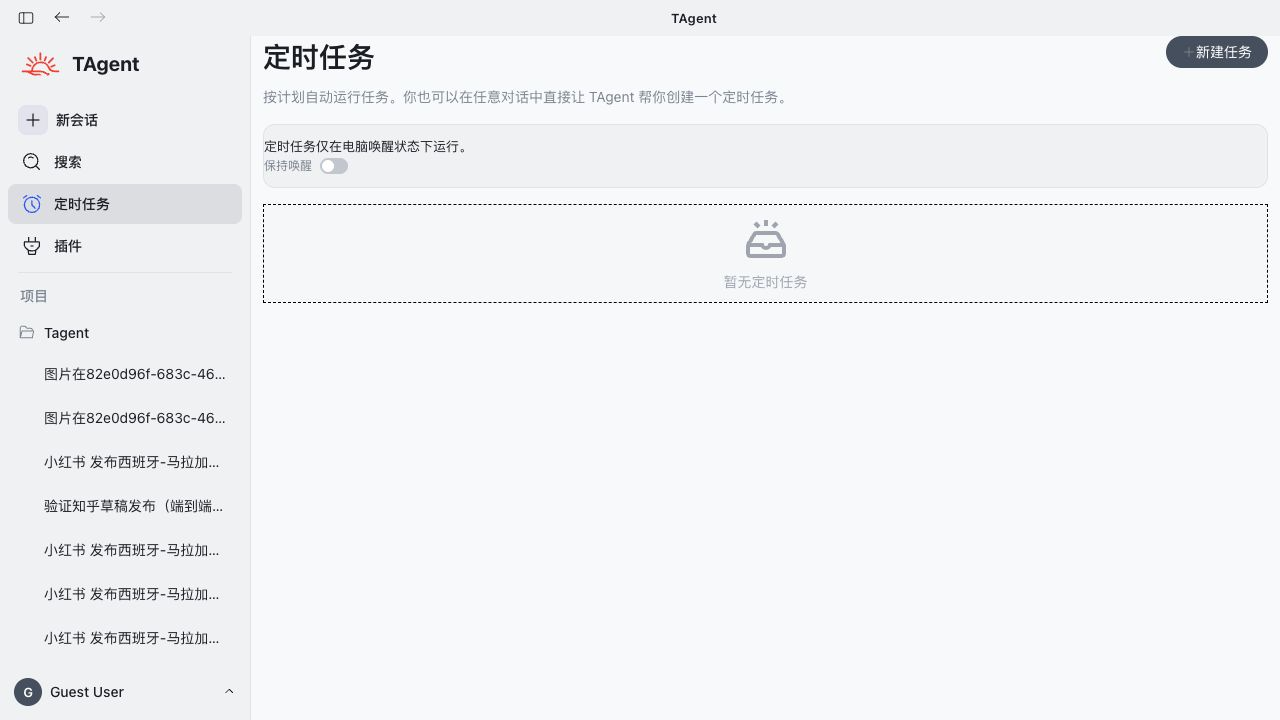
- Select Scheduled tasks in the sidebar.
- Select New task and enter a name, description, and execution instruction. Write the instruction so it can be understood on an independent run.
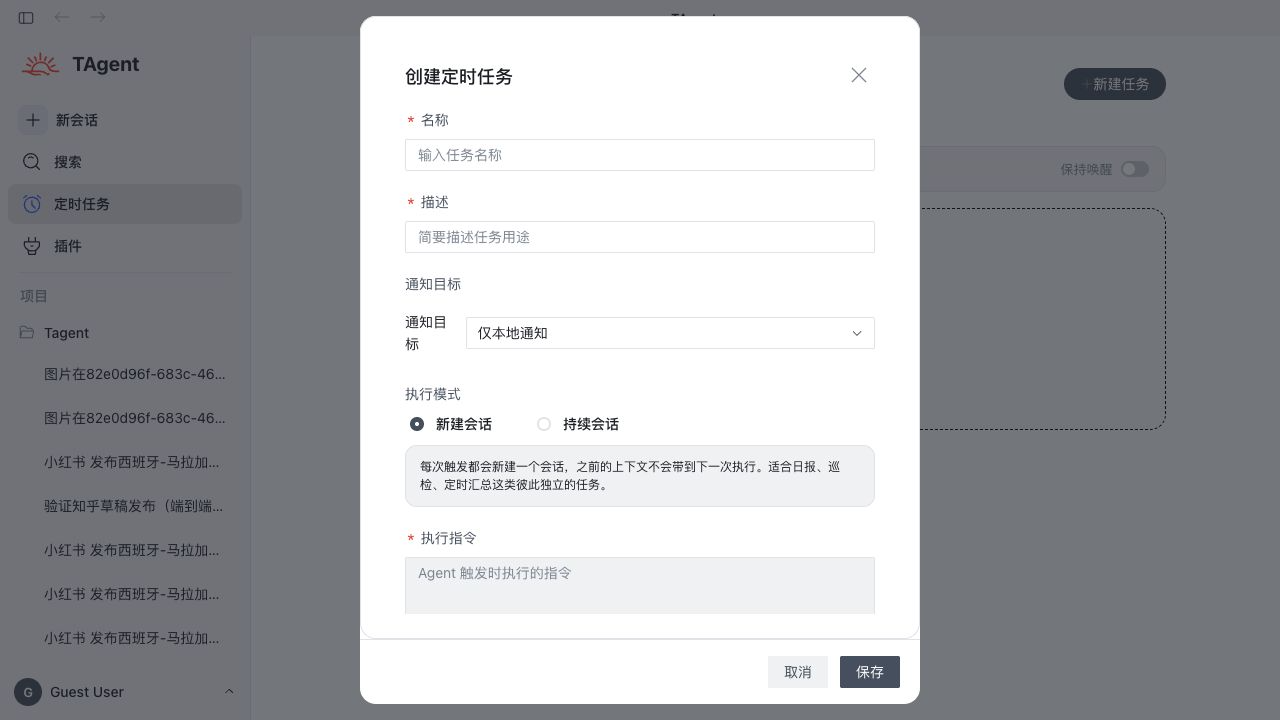
- Choose the conversation mode:
- New conversation starts without the previous run's context. Use it for daily reports, checks, and independent summaries.
- Continuous conversation returns to the same conversation and retains previous context. Use it to follow one subject over time.
- Choose manual, hourly, daily, weekday, weekly, or an existing custom schedule. Daily and weekly schedules also require a time, and weekly schedules require a weekday.
- Choose a notification target. Local notifications are available by default. A connected Feishu or Lark account can send to the primary chat or a selected conversation.
- Use advanced settings to select the correct workspace folder when the task needs to read or write files.
- After saving, review status, last run, next run, and errors. Open task details for the full instruction and run history.
- Pause a task temporarily, run it immediately for validation, or delete it when it is no longer required.
Important limits
- Scheduled tasks run only while the computer is awake. Enable Keep awake when reliable execution matters.
- A run may be delayed by several minutes for performance reasons. Do not use scheduled tasks for second-level or hard real-time workflows.
- The conversation mode cannot be changed after creation. Delete and recreate the task to switch modes.
- Deleting a scheduled task also deletes its conversations and execution history.
- Keep a human confirmation step for payments, publishing, sensitive messages, and similar actions.
Tyaio · Updated