'%3e%3cpath%20d='M8.85591%2016.2988H5.69922V26.321H8.85591V16.2988Z'%20fill='%23CD2529'/%3e%3cpath%20d='M2.28671%2014.7583H5.69928H8.85597H12.247C13.0146%2014.7583%2013.7041%2014.2923%2013.9923%2013.584L14.5337%2012.2534H0L0.541378%2013.584C0.829574%2014.295%201.52178%2014.7583%202.28671%2014.7583Z'%20fill='%23CD2529'/%3e%3cpath%20d='M40.4819%2020.7617L34.6318%2012.2505H36.8135C37.433%2012.2505%2038.0148%2012.5548%2038.3676%2013.0666L42.3269%2018.8197L41.8933%2018.7174L45.7826%2013.0666C46.1354%2012.5548%2046.7145%2012.2505%2047.3367%2012.2505H49.5184L43.6656%2020.7617V26.3209H40.49V20.7617H40.4819Z'%20fill='%23CD2529'/%3e%3cpath%20d='M111.241%2012.2505V24.4355C111.241%2025.4779%20110.398%2026.3209%20109.356%2026.3209H108.157V14.1359C108.157%2013.0935%20109%2012.2505%20110.043%2012.2505H111.241Z'%20fill='%23CD2529'/%3e%3cpath%20d='M136.777%2025.6828C135.641%2025.0903%20134.768%2024.2472%20134.154%2023.151C133.54%2022.0548%20133.235%2020.7673%20133.235%2019.2886C133.235%2017.8099%20133.542%2016.5198%20134.154%2015.4236C134.768%2014.3274%20135.641%2013.4843%20136.777%2012.8918C137.914%2012.2992%20139.247%2012.0029%20140.78%2012.0029C142.312%2012.0029%20143.645%2012.2992%20144.782%2012.8918C145.919%2013.4843%20146.791%2014.3274%20147.405%2015.4236C148.02%2016.5198%20148.324%2017.8073%20148.324%2019.2886C148.324%2020.77%20148.017%2022.0413%20147.405%2023.1429C146.791%2024.2445%20145.919%2025.0903%20144.782%2025.6828C143.645%2026.2754%20142.312%2026.5716%20140.78%2026.5716C139.247%2026.5716%20137.914%2026.2754%20136.777%2025.6828ZM143.185%2023.4634C143.877%2023.0729%20144.405%2022.518%20144.774%2021.8016C145.143%2021.0851%20145.326%2020.2475%20145.326%2019.2886C145.326%2018.3298%20145.143%2017.4733%20144.774%2016.7568C144.408%2016.0404%20143.88%2015.4855%20143.196%2015.095C142.511%2014.7044%20141.706%2014.5105%20140.78%2014.5105C139.853%2014.5105%20139.048%2014.7044%20138.364%2015.095C137.679%2015.4855%20137.154%2016.0404%20136.785%2016.7568C136.416%2017.4733%20136.233%2018.3163%20136.233%2019.2886C136.233%2020.261%20136.416%2021.0851%20136.785%2021.8016C137.152%2022.518%20137.682%2023.0729%20138.374%2023.4634C139.067%2023.854%20139.867%2024.0479%20140.78%2024.0479C141.693%2024.0479%20142.493%2023.854%20143.185%2023.4634Z'%20fill='%23CD2529'/%3e%3cpath%20d='M78.4727%2012.2505H75.2326L69.1724%2026.3209H71.249C72.0139%2026.3209%2072.7061%2025.8577%2072.9943%2025.1493L73.937%2022.841L74.9605%2020.3173L76.8405%2015.6684L78.7205%2020.3173L79.744%2022.841L80.6867%2025.1493C80.9776%2025.8577%2081.6671%2026.3209%2082.4321%2026.3209H84.5087L78.4727%2012.2505Z'%20fill='%23CD2529'/%3e%3c/g%3e%3c/svg%3e)
Klook operations
When a new booking arrives on Klook, you still need to enter it in T-CMS for the next stage of your work. Finding products and entering orders across two systems takes time, and it becomes harder to remember which bookings have already been handled.
Give this work to T-Agent's Klook Operations Expert. Specify which bookings to transfer and choose a single run or recurring transfers.
Transfer today's bookings in one run
To handle today's bookings together or transfer selected bookings that still need processing, ask T-Agent:
Transfer Klook bookings to T-CMS.
Use the sample provided by the Agent
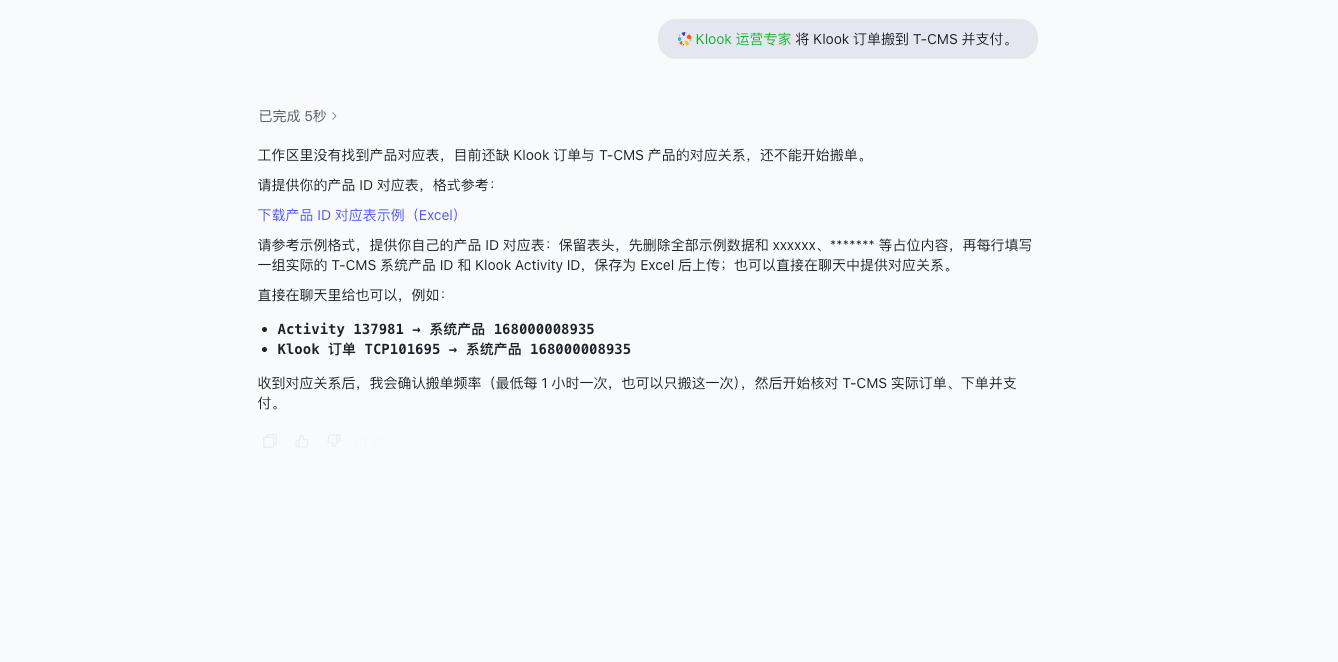
If the current workspace has no product mapping workbook, T-Agent provides a link to download a sample Excel workbook in chat and explains how to fill it in.
Click the link in the Agent's message, keep the column headers, and remove the sample data and placeholders. Enter your own T-CMS system product ID and Klook Activity ID pairs, one per row. Save the Excel file and upload it to the conversation, or provide the mappings directly in chat.
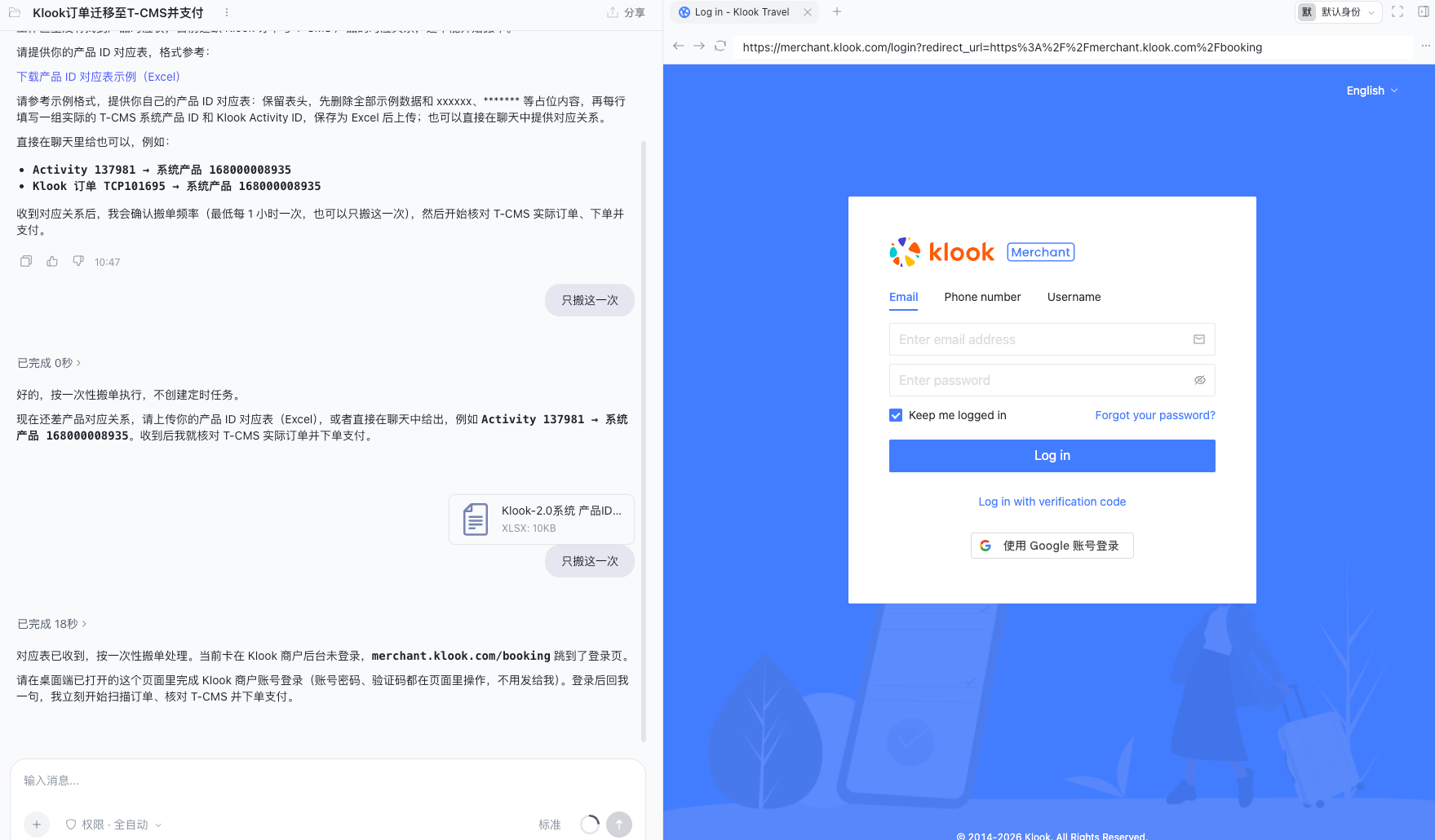
Sign in to Klook on the opened page
Once the product mappings are ready, confirm the transfer frequency when prompted. To handle only this batch, reply that you want a single run.
If the Klook merchant account is not signed in, T-Agent opens the login page in the browser on the right and asks you to sign in. Enter your account, password, or verification code on that page. Return to the conversation afterward, tell T-Agent you have signed in, and ask it to continue.
T-Agent handles the requested bookings and summarizes the results. Instead of copying each booking yourself, review what was transferred, what had already been handled, and what still needs information or confirmation.
Completion here means transferring Klook bookings to T-CMS.
Transfer incoming bookings every hour
If the same activities receive bookings every day, you do not need to start each transfer manually. Reuse the existing product mappings and ask T-Agent to transfer bookings at a regular interval:
Use the activity-to-system-product mappings above and transfer bookings every hour.
After you confirm the scope and frequency, T-Agent can use a scheduled task to keep transferring bookings every hour.
You no longer need to keep checking Klook for new bookings. Follow up on any issues reported by the task when they need attention.
Review the results and follow up
After each run, focus on three groups:
- Transferred this time: Review the Klook booking references and corresponding T-CMS order numbers to continue the work.
- Already transferred and skipped: See which bookings were completed earlier without arranging the same work again.
- Needs your attention: For example, missing information, unclear product options, or a settlement difference. Supply the requested details and confirm the next step before continuing those bookings.
Tyaio · Updated