
GetYourGuide booking transfers
This guide applies to T-Agent desktop development builds with booking transfers enabled.
GetYourGuide (GYG) sends booking, change, and cancellation notices by email. Ask T-Agent to check them by booking reference, transfer orders with complete information to T-CMS, or handle incoming orders on a schedule.
Ask the Agent to guide mailbox setup
Open Plugins in the T-Agent sidebar, select GetYourGuide Order Transfer, and choose Try in chat. Ask the Agent to configure the mailbox that receives GYG notices.
Configure my GetYourGuide order mailbox.
Generate a third-party client password in Alibaba Mail
- Sign in to Alibaba Mail webmail and open Settings → View More Settings → Account and Security → Account Security.
- Under Third-Party Client Logon Security Management, turn on Third-Party Client Security Password. Select Generate New Password and complete identity verification in webmail.
- Copy the generated password, enter a device label such as T-Agent, and select OK. Paste the password into the plugin settings below.
Make sure your mailbox allows third-party clients and has IMAP enabled. If access is restricted, contact your mail administrator. Alibaba Mail's official guide
Enter the account and password on the plugin page
Open Configure GetYourGuide mailbox on the plugin details page.
- Enter the full email address that receives booking notices.
- Enter the third-party client password on the plugin page.
- Select Save configuration, then Test connection. Continue checking emails once the test shows the mailbox is connected.
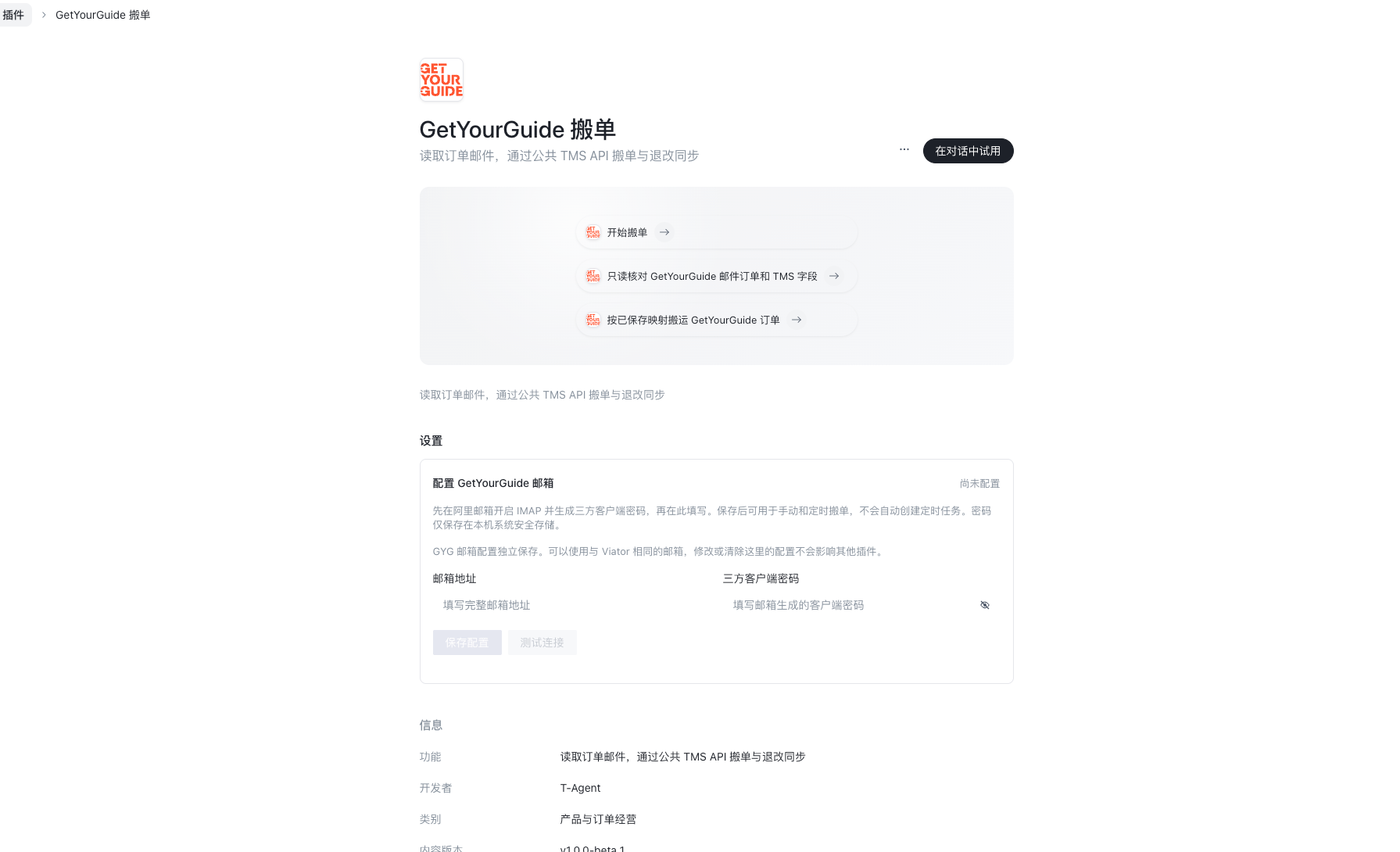
You can use the same mailbox that receives Viator notices. The GetYourGuide mailbox settings are saved separately, and the plugin handles only GetYourGuide notices.
Provide product mappings and transfer this batch
Once connected, start with a read-only review of the emails. By default, T-Agent checks notices received yesterday and today in Beijing time. You can also specify a receipt date range or a booking reference.
Review today's GetYourGuide booking emails in read-only mode. List the booking references, travel dates, and quantities, and tell me what information is missing.
Confirm the receiving T-CMS distributor. Provide the GetYourGuide product ID to T-CMS system product ID mapping and the full email address that sends the notices directly. Include any package or ticket requirements. For forwarded emails, check the original sender of the booking notice.
The native GetYourGuide notices recognized in this build support read-only review. A transfer requires a supported notice from a verifiable sender with a product ID, settlement currency, and supplier net settlement total.
Transfer the GetYourGuide bookings that passed this check to T-CMS. Show me the pending payment details after creating the orders.
Manual transfers include a payment review by default. Confirm the distributor, order number, travel date and session, passenger count, and amount before paying the corresponding order. Long-term credit is the default. You can choose another method available to the distributor.
Transfer incoming bookings every hour
Once the distributor, product mapping, order scope, and payment authorization are confirmed, ask T-Agent to create a scheduled task.
Use the product mappings above and transfer GetYourGuide email bookings every hour.
Find execution records in the scheduled task
- Open Automations (scheduled tasks) in the T-Agent desktop sidebar and find the GetYourGuide transfer task.
- Click the task to open its details.
- Open the relevant record under Run history to see transferred, skipped, and outstanding bookings.
See Scheduled tasks for the general steps.
Match bookings and check order details
T-Agent looks up the email's booking reference in the T-CMS Channel Order No. field. Native notices label it Reference number or Booking reference. Other compatible notices use Ext. booking ref. T-Agent saves the same reference when creating a new order.
- Check the order and product, including the channel reference and product mapping.
- Check the travel arrangements, including the date, start time, session, and any required pickup point.
- Check the package, ticket types, and quantity for each ticket type.
- Check the contact and traveler details required by the product.
- Check that the verifiable supplier net settlement (for example, GetYourGuide amount) and its currency match the total and currency payable in T-CMS.
- Check the payment status. A paid order keeps its existing system order number.
Review the results and follow up
- For bookings transferred this time, review the GetYourGuide booking reference and corresponding T-CMS order number.
- When a matching paid order is found, the result shows Already transferred and skipped.
- A confirmed cancellation with no existing system order appears as Cancelled and skipped.
- Under Needs your attention, follow up on missing settlement details, conflicting notices, or partial cancellations using the Agent's feedback. For cancellations or changes to a transferred booking, confirm the latest notice and corresponding system order before proceeding within the authorized scope.
Tyaio · Updated